Thursday, September 18, 2014

Student Presentations in Google Drive

"A day late and a dollar short" or "Better late than never" however you look at it, this week's Tuesday Tech Tip is coming to you on Thursday. I think we'd all agree that "Thursday Tech Tip" just doesn't have the same ring to it.


Many teachers have been asking for ways to easily display student work on the SMART Board or via the projector in the classroom. It is exciting to utilize technology to allow students to create and share. In our district, we have tried wireless projection methods like Apple TV and Chromecast (the Chrome version of the Apple TV) and we still have a lot of configuration and work to do in order to make these options effective. We are going to continue to look at easy ways to share student work in the classroom, however for now the best way to share student work is to use the desktop in the classroom that is connected to a projector.  


The best way to display student work from Google Drive is to use your desktop computer that is already connected to the projector or SMARTBoard and open an incognito window for the student as they come up to present.


Incognito windows are meant to not track web traffic. Therefore, it is not connected with your account and allows you to have the student log in without you logging out or adding users to your account.


To open an incognito window in Chrome:


When you open a new incognito window you will get a warning like this indicating that your web traffic can still be monitored but will not be stored in your history or cookies:

In your web search bar, you can type "drive" and you will get a log in prompt for the student to log into Google Drive. You can close that window and open a new incognito window for the next student presenter.

Tuesday, September 2, 2014

Copy/Paste on Your Desktop Computer with Google Docs


If you have started using Chrome as your main web browser and continued to explore Google Docs as a way of creating and sharing documents, you have probably noticed that there are some difficulties with copying and pasting between documents, particularly actions such as copying from Microsoft Word and pasting into Google Docs. I have inserted Google's instructions for using the Google Web Clipboard below. These should help you. It is just as easy as 'normal' copying and pasting, but has a few advantages also.

Firstly, it works on a desktop computer to paste between applications. Functioning properly is definitely a benefit! Secondly, you are able to copy/paste multiple strands of text, images, charts, etc without the web clipboard erasing your last entry. For instance, if I have an image and a strand of text, I can use Edit->Copy to Web Clipboard for each item and then use Edit -> Web Clipboard and select the text or image you want to paste. Third, you can access the Web Clipboard on multiple devices as the clips are saved in the cloud. As long as you sign into the same account, you should be able to copy something on one computer and paste it using another.

You can clear your copied items whenever you choose, otherwise, they will stay available in the Web Clipboard for 30 days. Below are the instructions from the Google Help pages.

--------------------------------------------------------------------------------------

There are a few cases in which the best way to copy and paste is using the web clipboard tool. With the web clipboard tool, you can copy more than one selection and then choose which one to paste later; it also lets you copy something on one computer and then paste it on another.
Select what you'd like to copy.
Click the Edit menu and select Web clipboard.
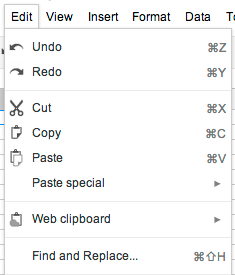
Click Copy selection to web clipboard.
In the destination file, click the Edit menu and select Web clipboard again; you'll see the selection that you previously copied. If you copied multiple things, you'll see a list of the items you've recently copied.
Place the cursor where you want to paste the content.
Select Web clipboard from the Edit menu.
Select what you want to paste. Depending on your selection, you'll see different formats that you can choose from to paste what you've copied (for example, HTML or plain text).
Select a format.

Drawings

You can use the web clipboard to copy shapes from drawings and paste shapes into drawings embedded in Google spreadsheets, documents and presentations, or to copy and paste a drawing from a doc into the standalone drawing editor.

Click the Edit menu, select Web clipboard, and then select Copy shapes to web clipboard. Then, open the document that you want to paste the drawing into. Select Web clipboard from the Edit menu, and then select the drawing you want to paste from the menu.

Presentations

You can't use the web clipboard to copy and paste regular text and images in Google Slides yet. You can select entire shapes on a single slide, and if the shape is a text shape, then the text will be copied to the server clipboard.

Charts

You can use the web clipboard to copy and paste charts from a spreadsheet into a document or drawing.
How content on the server clipboard is stored and protected

You can access the content copied to the server clipboard only by signing in to the same Google Account you used to copy the content originally.

Content you copy to the web clipboard is stored on Google's servers and remains there until 30 days have passed since you last took action on (for example, copied) a given content selection. Even if a document is deleted, anything you copied from that document to the server clipboard will still exist on Google's servers for that 30-day period. You can delete all items stored on the server clipboard by clicking the drop-down menu and selecting Clear all items.

Tuesday, August 19, 2014

Setting Gmail as the Default Mail Handler for Opening E-mail Links


Many have asked for the ability to click a mail link and have it open a new Gmail message instead of launching Outlook, which we don't use anymore. These instructions will work for other mail-to links, but the request is most common for people wishing to click on the email address of a parent in Infinite Campus and have a Gmail message automatically pop up instead of trying to launch Outlook. If you are in the habit of using mail links, you should follow these steps to ensure that the messages you create with a mail link actually go out. (Otherwise they may sit in the Outlook outbox and never actually send.)

You will need to remove a setting in Outlook, enable a setting in Gmail and make Chrome your default browser. Here are the steps.

  1. Open the Outlook application on the desktop (not the Web Access), Choose File, Options, Uncheck box to make Outlook the default mail program (the last choice under Options on the General section) 
  2. Click the two diamonds icon in the browser address bar in Chrome. Tell it to use CFSD mail as the default mail program. 
  3. Make Chrome the default browser. Chrome Menu, (three lines in right corner), Settings, Set Default Browser towards bottom of page. 
This should allow you to click a mail link when viewing a record in Infinite Campus via Internet Explorer or Chrome and it will open a new mail message in Gmail. This should also allow you to use a mail button from within another application to bring up a new mail message.

WARNING: If you make Chrome your default browser, the desktop shortcuts for any web addresses (including Infinite Campus) will change to a Chrome icon and will automatically open in Chrome when you use them. You will need to selectively open Internet Explorer to launch a site if you wish to use it in IE.

Creating a Class List on Google

Creating a Contact Group for your class(es) can be very beneficial. It makes it easier to email your students all at once and share documents to groups by typing in the group name rather than typing in every email address.

You can create class lists by going to Contacts, clicking New Group and following the steps, typing in each student to create the group. If you have multiple classes, this can be somewhat time consuming. There is a way to create contact groups using your Infinite Campus rosters. Its not for the faint of heart - there are a lot of steps - but Nick Gagnon used some of his Google Summer Camp time this week to create a detailed tutorial. You should be able to follow the picture steps in his tutorial to create class lists based on each course.

Those instructions can be found here. Thank Nick next time you see him!

Creating a Class List Using Infinite Campus Rosters

Tuesday, June 3, 2014

SMART Notebook Updates Coming to CFSD

Over the summer we will be upgrading to SMART Notebook 2014.  There are several technical reasons that lead to this upgrade and although it means your SMART Notebook software may look a little different in terms of toolbars and layout, we think you will appreciate all the new features that come with the latest version.

Read below for some of the highlights, or watch this video for a demonstration.

Key enhancements in Notebook 2014: (taken from SMART website where quoted)

New tools
"Easily create and deliver engaging lessons with new functionality in SMART Notebook, including a paintbrush pen and image editing tool."

Ink editing
"Enhance instruction with automatic handwriting recognition and conversion combined with intuitive text editing capabilities. Now you can edit, move, delete, modify or insert text objects without reaching for a keyboard."

SMART Response VE
"Seamlessly transition between lesson delivery and assessment. Students can respond to planned and spontaneous questions and quizzes from any Internet-enabled device, anywhere."  If you use or have used SMART Response, you can now have students respond from any device that has internet access. Great for classrooms that do not have enough clickers, or if you don't have access to any.

XC Collaboration Basic
"Stimulate collaboration and discussion while incorporating mobile devices into your SMART Notebook lessons in new and exciting ways." Start a collaborations session and students can contribute to the activity in real time via multiple web devices. 

SMART Notebook Math powered by Geogebra
"Improve math functionality for all grade levels with more than 55,000 math content objects and interactive activities for geometry, algebra, calculus and statistics. It supports both Mac and PC." Check out this video for a demo.SMART Notebook 3D tools
"Provide truly immersive learning through the use of 3D objects right in your SMART Notebook lesson."

SMART Notebook Connect
"Find and explore new content, resources and professional development within SMART Notebook."

This change will look minor for those of you using version 11.x. If you are still using 10.x, the toolbars will look different and it is a major feature enhancement.  We have arranged several opportunities to brush up on your SMART skills this summer.  Check the Professional Development Portal for details.  To check the version you are using, click the Help menu, choose About, look on the Technical Support tab.


Monday, May 5, 2014

New Google iPad Apps

Google recently released two new apps for iPads: Google Docs and Google Sheets. These apps work in conjunction with the Google Drive app that is already on our cart iPads, and many of our teacher devices. The good news is that Google promises to also release a Google Slides app soon, which would allow creation of Google Slide Presentations on an iPad - yay!

However, one major caveat of this new venture is that the Google Drive app itself no longer allows users to edit Google Docs or Spreadsheets. Google Drive remains an app on the iPad to show your files stored in the cloud, but if you attempt to edit a document, that document opens automatically in either the Google Docs or Google Sheets app.

This is particularly troublesome for anyone using our iPad carts for projects in their classroom and relying on Google Drive for storing partially completed projects or relying on Google Drive to share completed projects with the teacher.

The Technology Department is working on conjunction with the LMC Specialists to determine the best time to collect the iPads, transport them to the middle school and make the necessary updates. If you have the cart checked out and plan to use Google Drive, please consider revising your plans or letting your LMC Specialist know that you won't be using the iPads.

If you use Google Drive on your own iPad, you will need to visit the App Store and download two new free apps: Google Docs and Google Sheets.

If you have any questions, please contact Sarah Radcliffe

Friday, May 2, 2014

Become a Google Educator

Becoming a Google Educator: An Opportunity for CFAUSD Teaching staff


This semester, we have been able to offer many courses in Google Apps for Education (Gmail, Calendar, Google Docs, Drive, Sites, etc) after school as part of Google After Hours. The instructors for Google After Hours are “Google Qualified Individuals.” To achieve this certification, these teachers took part in a two-day training in the Spring of 2013, culminating with 6 multiple choice exams. Passing of these exams allows an individual to reach the status of Google Qualified Individual.


Google has since changed some of their qualification measures. Now, passing of exams in four required areas, plus at least one elective area achieves a status of Google Educator. Once you pass the exams, you will receive a Google Educator certificate and be off and running with a deeper understanding of Google Apps for Education and all it encompasses. You will be more able to begin working toward integrating technology with your curriculum in a way that allows more effective and efficient teaching.


Exams:
All (Required):
  • Gmail
  • Calendar
  • Docs & Drive
  • Sites
At least one (Electives):
  • Chrome Browser
  • Chromebooks
  • Tablets with Google Play for Education
  • Implementing Google Apps
Benefits from Google:
  • certificate indicating completion of exams
  • option of applying for Authorized Google Education Trainer or Google Certified Teacher


Benefits from CFAUSD:
  • opportunity to attend paid training by (almost) Authorized Google Education Trainers from our district to help you with the material needed to pass the exams
  • exam fees paid by the district
  • demonstration of teacher leader qualities by attaining certification
  • opportunities to provide training to fellow colleagues starting August 2014
  • beneficial skills set important for applying for Chippewa Falls Innovative Teacher Grants for Technology


Timing:
  • Training opportunity will take place June 23rd and June 24th. You are required to attend both days.
  • June 24th - July 31st work independently or in small groups to study for and pass exams
  • Week of July 28th work with Cara and Sarah on preparing for delivering August professional development


If you are interested in pursuing becoming a Google Educator, please fill in the following form with your information. We will get in touch with you in the next few weeks to discuss further. Teachers may be chosen based on curricular readiness and teaching area (grade, school, etc) upon recommendation of building principal. Further information can be found here: Google Certifications.


Thanks for considering. If you are interested, please fill out this form by May 18th.
Interest Form