Tuesday, October 7, 2014

Browser History, Cache and Cookies, Oh My!

You may have heard of cache and cookies related to web-browsing and thought, while craving a sleeve of thin mints and a glass of cold milk, what in the world does that mean? Put simply, when a web browser is used to access the internet, that web browser, such as Google Chrome or Internet Explorer, saves a little bit of the information from the website you are visiting. For example, if you frequently visit a webpage that contains a lot of images, your browser may save some of the images so that the webpage can load faster. Cookies and cache are also what are used to autofill your username and password on some websites.

What happens when you visit the same sites over and over again is that your web browser may try to access cached data that has timed out. That makes your browser think that you are signed in already, but the website things that you need to sign in again. This can cause a multitude of problems with the access to the site that can cause problems like blank pages, pages that look like a bunch of colored text, etc.

Periodically clearing your cache and cookies can help with this. Honestly, this is not something that I remember to do on a regular basis on its own, but it is one of the things that I try when troubleshooting a problem accessing a web page. The instructions are below, inserted from: https://support.google.com/chrome/answer/95582

Delete all your data

  1. Click the Chrome menu Chrome menu on the browser toolbar.
  2. Select Tools.
  3. Select Clear browsing data.
  4. In the dialog that appears, select the checkboxes for the types of information that you want to remove.
  5. Use the menu at the top to select the amount of data that you want to delete. Select beginning of time to delete everything.
  6. Click Clear browsing data.
You can choose any timeframe for deleting cache and cookies, but generally I choose "the beginning of time." You will also have options for what types of browsing history to clear. I generally choose the top 4 boxes and that solves the problem most of the time.

Tuesday, September 30, 2014

Chromebook Troubleshooting 101

Below is a document that Cara sent out to students in the past couple of weeks. It is a good document to refer students to when they are having trouble with their Chromebooks. These troubleshooting tips can solve  most problems students would encounter.


Chromebook Troubleshooting Tips for Students 

Check wireless connection.  It should be connected to CFSDStudents.  Password  gocardinals The password must be spelled correctly in all lowercase.  If you have to do this more than one time, please check with the library.

At least once a day you must authenticate on the Lightspeed filter with network username and password. This is a white page with the district logo and a username and password entry field.

Log in to the Chromebook browser with Google account credentials.  username@chipfalls.org and network password.

If the Chromebook is repeatedly connecting to a wireless network other than the CFSDStudent, please check with the library.

If an app, the sound or keyboard is acting quirky, or not working at all, try closing all the tabs and the browser.  If that does not work, try shutting it down using the shutdown icon from the lower right system menu or pressing the power button for at least 10 seconds.

Check for updates by choosing the Settings menu from the system tray then clicking on Help.  You may need to restart after it finishes.

Disable extensions and see how things work.  Re-enable one at a time to see if the problem re-appears.

Check accessibility features in the Settings menu to turn of spoken feedback or modify mouse and display settings.

If camera does not work, check Settings, Help to update to the latest version of Chrome.

If you are successfully connected to the Internet, but cannot login to a particular website that you have used in the past, go to the Chrome menu (3 lines in upper right corner), click History, click “Clear browsing data...”, make sure at least the top 4 boxes are checked. Click the “Clear browsing data” button.

Power off Chromebook nightly using the Power Off icon.

Friday, September 26, 2014

Lost Chromebooks

The dust has settled a little bit in the Tech Coach office at the high school. Chromebooks are out to students and teachers have taken off utilizing this technology in the classroom. We have been working hard on developing quality processes for common scenarios such as, "I forgot my Chromebook at home" - the 2014 version for 'my dog ate my homework.'

One of the more alarming scenarios, but thankfully not too common, is the "I lost my Chromebook." When this happens, we talk to the student about where and when the Chromebook was last used. Because they are teenagers and their prefrontal cortex is not fully developed, plus the fact that a lost Chromebook puts them into fight or flight mode, it is not surprising that students have a difficult time recalling the last time they used their Chromebook.

In the Tech Dept, we can check the last time the student authenticated on the wireless at school and who was the last user to log into the Chromebook. This helps us put the pieces together as to where the Chromebook might be.

Just after we email the technicians to start digging into log-ins, we also email the teachers on the student's schedule to see if the Chromebook was accidentally left somewhere, even though the student swears that they left it at the football game Friday night. Almost every time this happens, the Chromebook turns up in a teacher's classroom.

A very helpful step in this process would be if a student leaves his or her Chromebook in your classroom, please email Sarah Radcliffe, Cara Schueller, Amy Ambelang and Mary Hertzfeldt. Then, when the student dutifully reports to the library to reluctantly report their Chromebook is missing, we can point them directly to where we already know it is waiting.

Thursday, September 18, 2014

Student Presentations in Google Drive

"A day late and a dollar short" or "Better late than never" however you look at it, this week's Tuesday Tech Tip is coming to you on Thursday. I think we'd all agree that "Thursday Tech Tip" just doesn't have the same ring to it.


Many teachers have been asking for ways to easily display student work on the SMART Board or via the projector in the classroom. It is exciting to utilize technology to allow students to create and share. In our district, we have tried wireless projection methods like Apple TV and Chromecast (the Chrome version of the Apple TV) and we still have a lot of configuration and work to do in order to make these options effective. We are going to continue to look at easy ways to share student work in the classroom, however for now the best way to share student work is to use the desktop in the classroom that is connected to a projector.  


The best way to display student work from Google Drive is to use your desktop computer that is already connected to the projector or SMARTBoard and open an incognito window for the student as they come up to present.


Incognito windows are meant to not track web traffic. Therefore, it is not connected with your account and allows you to have the student log in without you logging out or adding users to your account.


To open an incognito window in Chrome:


When you open a new incognito window you will get a warning like this indicating that your web traffic can still be monitored but will not be stored in your history or cookies:

In your web search bar, you can type "drive" and you will get a log in prompt for the student to log into Google Drive. You can close that window and open a new incognito window for the next student presenter.

Tuesday, September 2, 2014

Copy/Paste on Your Desktop Computer with Google Docs


If you have started using Chrome as your main web browser and continued to explore Google Docs as a way of creating and sharing documents, you have probably noticed that there are some difficulties with copying and pasting between documents, particularly actions such as copying from Microsoft Word and pasting into Google Docs. I have inserted Google's instructions for using the Google Web Clipboard below. These should help you. It is just as easy as 'normal' copying and pasting, but has a few advantages also.

Firstly, it works on a desktop computer to paste between applications. Functioning properly is definitely a benefit! Secondly, you are able to copy/paste multiple strands of text, images, charts, etc without the web clipboard erasing your last entry. For instance, if I have an image and a strand of text, I can use Edit->Copy to Web Clipboard for each item and then use Edit -> Web Clipboard and select the text or image you want to paste. Third, you can access the Web Clipboard on multiple devices as the clips are saved in the cloud. As long as you sign into the same account, you should be able to copy something on one computer and paste it using another.

You can clear your copied items whenever you choose, otherwise, they will stay available in the Web Clipboard for 30 days. Below are the instructions from the Google Help pages.

--------------------------------------------------------------------------------------

There are a few cases in which the best way to copy and paste is using the web clipboard tool. With the web clipboard tool, you can copy more than one selection and then choose which one to paste later; it also lets you copy something on one computer and then paste it on another.
Select what you'd like to copy.
Click the Edit menu and select Web clipboard.
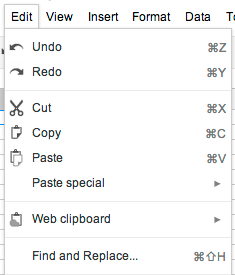
Click Copy selection to web clipboard.
In the destination file, click the Edit menu and select Web clipboard again; you'll see the selection that you previously copied. If you copied multiple things, you'll see a list of the items you've recently copied.
Place the cursor where you want to paste the content.
Select Web clipboard from the Edit menu.
Select what you want to paste. Depending on your selection, you'll see different formats that you can choose from to paste what you've copied (for example, HTML or plain text).
Select a format.

Drawings

You can use the web clipboard to copy shapes from drawings and paste shapes into drawings embedded in Google spreadsheets, documents and presentations, or to copy and paste a drawing from a doc into the standalone drawing editor.

Click the Edit menu, select Web clipboard, and then select Copy shapes to web clipboard. Then, open the document that you want to paste the drawing into. Select Web clipboard from the Edit menu, and then select the drawing you want to paste from the menu.

Presentations

You can't use the web clipboard to copy and paste regular text and images in Google Slides yet. You can select entire shapes on a single slide, and if the shape is a text shape, then the text will be copied to the server clipboard.

Charts

You can use the web clipboard to copy and paste charts from a spreadsheet into a document or drawing.
How content on the server clipboard is stored and protected

You can access the content copied to the server clipboard only by signing in to the same Google Account you used to copy the content originally.

Content you copy to the web clipboard is stored on Google's servers and remains there until 30 days have passed since you last took action on (for example, copied) a given content selection. Even if a document is deleted, anything you copied from that document to the server clipboard will still exist on Google's servers for that 30-day period. You can delete all items stored on the server clipboard by clicking the drop-down menu and selecting Clear all items.

Tuesday, August 19, 2014

Setting Gmail as the Default Mail Handler for Opening E-mail Links


Many have asked for the ability to click a mail link and have it open a new Gmail message instead of launching Outlook, which we don't use anymore. These instructions will work for other mail-to links, but the request is most common for people wishing to click on the email address of a parent in Infinite Campus and have a Gmail message automatically pop up instead of trying to launch Outlook. If you are in the habit of using mail links, you should follow these steps to ensure that the messages you create with a mail link actually go out. (Otherwise they may sit in the Outlook outbox and never actually send.)

You will need to remove a setting in Outlook, enable a setting in Gmail and make Chrome your default browser. Here are the steps.

  1. Open the Outlook application on the desktop (not the Web Access), Choose File, Options, Uncheck box to make Outlook the default mail program (the last choice under Options on the General section) 
  2. Click the two diamonds icon in the browser address bar in Chrome. Tell it to use CFSD mail as the default mail program. 
  3. Make Chrome the default browser. Chrome Menu, (three lines in right corner), Settings, Set Default Browser towards bottom of page. 
This should allow you to click a mail link when viewing a record in Infinite Campus via Internet Explorer or Chrome and it will open a new mail message in Gmail. This should also allow you to use a mail button from within another application to bring up a new mail message.

WARNING: If you make Chrome your default browser, the desktop shortcuts for any web addresses (including Infinite Campus) will change to a Chrome icon and will automatically open in Chrome when you use them. You will need to selectively open Internet Explorer to launch a site if you wish to use it in IE.

Creating a Class List on Google

Creating a Contact Group for your class(es) can be very beneficial. It makes it easier to email your students all at once and share documents to groups by typing in the group name rather than typing in every email address.

You can create class lists by going to Contacts, clicking New Group and following the steps, typing in each student to create the group. If you have multiple classes, this can be somewhat time consuming. There is a way to create contact groups using your Infinite Campus rosters. Its not for the faint of heart - there are a lot of steps - but Nick Gagnon used some of his Google Summer Camp time this week to create a detailed tutorial. You should be able to follow the picture steps in his tutorial to create class lists based on each course.

Those instructions can be found here. Thank Nick next time you see him!

Creating a Class List Using Infinite Campus Rosters