Tuesday, March 15, 2016

Breakout EDU - Can you crack the code and open the box?

There is no doubt that gaming is a hobby sweeping the nation. Places like Tactical Escape 101 in Eau Claire have built a business around locking people in a room loaded with the clues and puzzles to solve to earn the key to escape.

Intriguing to adults and children alike, principals from Tactical Escape 101 can be applied to classrooms as well. Breakout EDU sells ready-made kits and games for teachers to use in the classroom. They also post open-source instructions to create your own kit from a few common items you can get from a local store.  There are ready-made games and templates to create your own.

Students work together to find a variety of hidden clues and puzzles. The puzzles need to be solved in order to find another clue or unlock a lock. Students need to communicate and problem-solve together because the clues are interconnected and often depend on one another.

Collaboration, communication and problem-solving skills are essential for students to continue to be successful in school and beyond school. Using collaborative games, like breakouts, can foster these skills in the classroom.

Teachers have also created their own puzzles or adapted the idea. Students must solve math problems or logic puzzles to earn a key; students must demonstrate practice of a skill recently learned in order to earn the combination to a lock. You could even stretch this out over a unit by using one lock for each concept, skill or standard and having students work together to unlock the box across an entire unit! Think of how curious they will be!

If you want to give this a try, contact Cara or Sarah to get started!

Wednesday, March 9, 2016

SMART Tips

SMART Tips


If you have a SMART board in your classroom or access one during the course of your day, read on. SMART Notebook 15 brought several updated features that you should check out. To find the version of Notebook you are using, choose Help, About SMART Notebook from the menu, then click on the Technical Support tab.


New SMART Ink
The floating toolbar has been replaced with the new SMART Ink.  I call it the ink bubble. Tapping this new bubble will give you access to most of the tools you were accustomed to on the floating toolbar, except the Screen Shade and Spotlight.  Those are still available with a couple of taps by accessing the SMART Tools menu on the System Tray (Windows). For more detailed instructions, check out the SMART Ink UserGuide.


Some of the toolbar items have new options:

Accessing shapes and polygons
  • Regular polygons are on the toolbar, irregular polygons are on the Tools menu.  
  • You can now divide shapes (circles, rectangles and squares). Right click the shape or choose Divide shape from the command drop down menu. Drag out divided pieces if needed.
  • Show/Hide vertices, interior angles and side lengths.  Find the options on the command drop down or right click menu.


Concept Mapping
  • Tap the puzzle piece on the toolbar
  • Choose concept mapping 
  • Tap + to add a node
  • Double-click inside a node to add details.


Add-Ons
  • There is a new Add On that makes it easy to add a YouTube video.
  • Click the Add-On Tab on the side bar to access the YouTube tool as well as SMART Blocks, Lesson Recorder, GeoGebra..
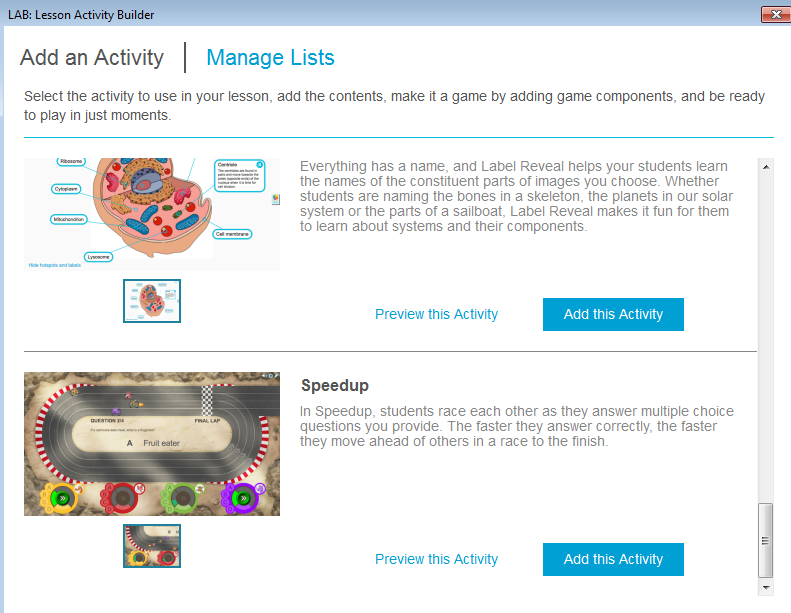
  • From the Insert Menu or the LAB button on the toolbar you can insert an activity from Lesson Activity Builder.  There are sorting, fill in the blank and matching activity templates where you fill in the content and even add game components to make it more fun.
  • Take advantage of mobile devices in your classroom with Shout It Out. With this LAB tool students can use any web enabled device to contribute text or images to your Notebook lesson, great for quickly assessing student progress or enhancing your discussion.


  • In version 15.2 the LAB includes two new activities: Label Reveal and Speedup.


Explore these items on your own, or check out this video reviewing Lesson Activity Builder apps that came with 15.1 and demonstrating the new ones that came with 15.2.  This video highlights a few of the new features in 15.2, including quickly inserting YouTube videos without ads, a fun lesson activity builder and some new themes.  If you would rather read more about these tools, take a look at this quick summary from Teq.com.


As always, if you are a staff member at CFSD, you can contact your Tech Coaches for more information.

Thursday, March 3, 2016

EdCamp Eau Claire - Whats the Big Deal?

EdCampEC is BACK! This year, the event of the region will be held on April 9th. 

Location: Chippewa Falls Area Senior High School - 735 Terrill St, Chippewa Falls, WI. 

Registration is OPEN. CLICK HERE!

**New this year***
We will feature speaker Dr. Brad Gustafson, principal of Greenwood Elementary School in Wayzata, MN. See more here on how Dr. Gustafson uses Connected Learning to engage and empower his teachers and students: https://vimeo.com/137245269. And, I heard he's bringing robotics challenges... This is something you will all want to try!

- - -- - -- - -- - -- - -- - -- - -- - -- - -- - -- - -- - -- - -

Don't know what EdCamp is? Read on...

Have you ever been to a conference, attending 50-minute sessions throughout the day, only to realize that the session you really wanted didn't exist? Or that the session description misled you in regards to the actual content of the session? Or you already knew everything the presenter was talking about? Or found that time networking after-hours revealed more beneficial, practical information than the conference sessions themselves? Have you been looking for a way to overcome these conference woes? If so, EdCamp - Eau Claire is your answer!

EdCamps occur all over the country. They are designed as an un-conference... no presenters, no pre-planned topics, no limit to the discussions that can take place. Born from the power of collaboration among colleagues, EdCamp began in May, 2010 in Philadelphia. Planning goes into registration, promotion and donation-gathering. No pre-planning goes into securing presenters, selecting topics or choosing presentation proposals.

This may seem strange at first, but have faith. When teachers gather, they already know what they want to talk about. It might be effectively using Twitter to reach high school students; or using collaboration tools in Google Docs to give students meaningful feedback throughout the writing process; or strategies for effective classroom management when using technology tools. Anything goes!

EdCamp Eau Claire first debuted in April 2014. On the morning of EdCamp, attendees submit their ideas for sessions. EdCamp planners choose rooms and times for the ideas. Attendees choose sessions to attend, and discussion begins, collaboration ensues, and magic happens...

Unlike a regular conference, attendees at EdCamp may choose sessions for different reasons: first, they may choose a session because they are interested in listening, asking questions and learning more; second, they may choose a session because they are passionate, experienced or knowledgeable about the topic and interested in helping lead the discussion. Each session ends up with a different feel, different discussions and a different outcome.

If this sounds like something for you, consider attending EdCamp - Eau Claire on April 9th. We will host this amazing event at the Chippewa Falls Area Senior High School - 735 Terrill St, Chippewa Falls, WI. Registration is OPEN. There is no cost to attend and food will be provided!

Follow: @EdCampEC on Twitter to get up-to-date information, including where and how to register.

For more information about EdCamp Eau Claire, including registration, visit: https://sites.google.com/site/edcampecwi/home.

For more information and to find other EdCamps in the area and across the country, visit http://edcamp.org/

**Much of this content is from a previous blog post in February 2015.**

Tuesday, March 1, 2016

Practice Arguments with Apples to Apples

A fun and engaging way to practice argument in your classroom is to play a modified game of Apples to Apples. In the traditional board game, players are given a hand of noun cards. The dealer places a verb card out for all players to see. Each player secretly places their best noun card on a stack for the dealer. The dealer then chooses the best match based on his or her own opinion or interests. The dealer can choose the most humorous responses, the best representation, the craziest response, etc. Players in each round can verbally support their own card by stating arguments for why their card is the best choice. 

In this educationally inspired version, teachers create green theme cards and red subject cards in sets for students to utilize. In this round, a student may argue that Richard Nixon was NASTY because he was the “only president to ever resign, began the idea of citizens questioning and not trusting their leaders ever again."

The dealer would choose the best match for NASTY based on the argument evidence and/or reasoning that each student made for their subject card.

Linked below is a slide presentation with all of the instructions and templates for creating the cards: https://goo.gl/8PfoAS.

**Thanks to Ryan O'Donnell (@creativeedtech) of creativeedtech.weebly.com for posting this idea on Twitter, and creating the templates.

Monday, February 15, 2016

Seesaw - Showcase Student Work for Parents

Written by STII Student: Jason

How many of you have wanted to document what a student is doing? Or document what a student has done? With an app called Seesaw, you can take a picture or video of such thing.
download.png
seesaw-folders-flags-feed-view.pngWhen a student uploads content to Seesaw, it can be organized into a certain folder. It is then accessible by any teacher at any time. This also helps so teachers and students can watch their growth. Another feature that can be used is that a teacher can flag a certain item to either ask a question, or review such item.  This app can also be accessed anywhere. So parents can also watch how their student is doing, along with what they are doing during the school day.

Seesaw is available for the iPad in the app store for free. When parents download the app, they can see only their own student’s work. You only need one iPad in your classroom to use Seesaw! Get started today!


For help getting started or questions, contact Sarah Radcliffe (x2216) or Cara Schueller (x2587)

Friday, February 12, 2016

Google Forms Gets a New Look

For a while now, you may have noticed Google asking if you would like to try the new Forms.  The interface is revamped with a new look and supposedly easier to use.  I have been hesitant to encourage staff to switch to the new forms because the ability to use Add-Ons was not there yet.  For many seasoned Google Forms users this was a huge deficit. Much of the power of Forms comes from how you can control the distribution of the form or manipulate the form submission data with Add-On tools.

I am happy to report that you may make the switch because Add-Ons are now available in the new interface.  Try it out.  I think you will like the new look and features.  


Below are two great articles detailing some recent updates to Google Forms.  


Tuesday, February 2, 2016

Tech Tool Spotlight: Google Docs Creation Links

Tech Tool Spotlight: Google Docs Creation Links
by: Isaac Wisti

The Google Drive suite is a wonderful tool that we use in this district, but it can be a little bit of a hassle to create a new document. You have to go into Google Drive, find the folder you want your document to be in, then you have to click new, and finally click document. This process takes an average of about 20 seconds, and takes even more if you are an extremely organized person that uses a lot of folders. Fortunately, there is an alternative route: you can create a bookmark.

By using a bookmark, you don’t have to enter Google Drive at all, saving you over 15 seconds every single time. This is useful to both students and teachers alike. Not only do you save time, but it is just feels better, at least in my opinion, to click one button rather than go through a 4 step process in order to make a new document.

To get it set up is just a couple simple steps.

First, right click your bookmarks bar and click “Add Page” as shown in the image (similarly, if you are using Firefox hit “New Bookmark”) Addpage.PNG

A menu will pop up, it will ask you to enter a name and link. You can put whatever name you want to in the first box, I recommend the name “New Doc.” The second box must be the following without the parenthesis, (docs.google.com/document/create). You can then click the save button, and you’re done!

Name doc.PNGThis process also works for presentations, spreadsheets, forms, and drawings, you just have to replace the word “document” with the corresponding word.

There are two issues with doing this, however both have solutions. The first is that when you create a document this way, it will be in your main Google Drive folder, not organized at all. The fix for this is to use another feature that allows you to move a document to a folder from within a document.

The other issue is that these bookmarks can take up a lot of space on your bar, this is fixed simply by putting them in folder on your bookmarks bar.

Hopefully you found this as useful as I did, and it will save you some time and hassle.
move2folder.PNG


List of things to replace document (in the link) with:
  • spreadsheets
  • presentation
  • form
  • drawing